Credits laden…
Advanced Options

JPG to DWG Converter

Use JPG to DWG conversion to bring a scanned plan or line drawing into your CAD workflow. Choose conversion options, preview the result, and review the downloaded drawing before continuing your project.

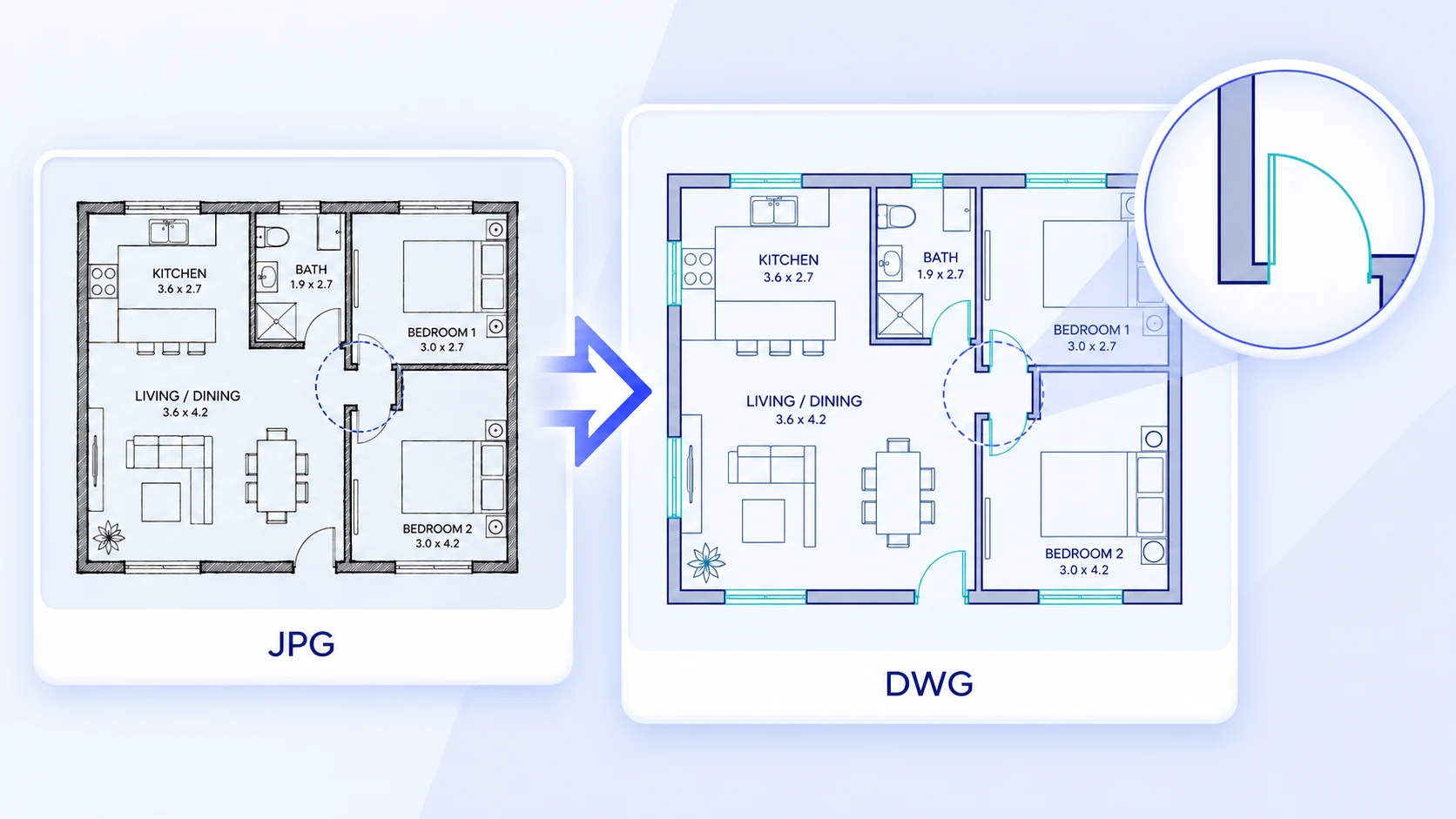
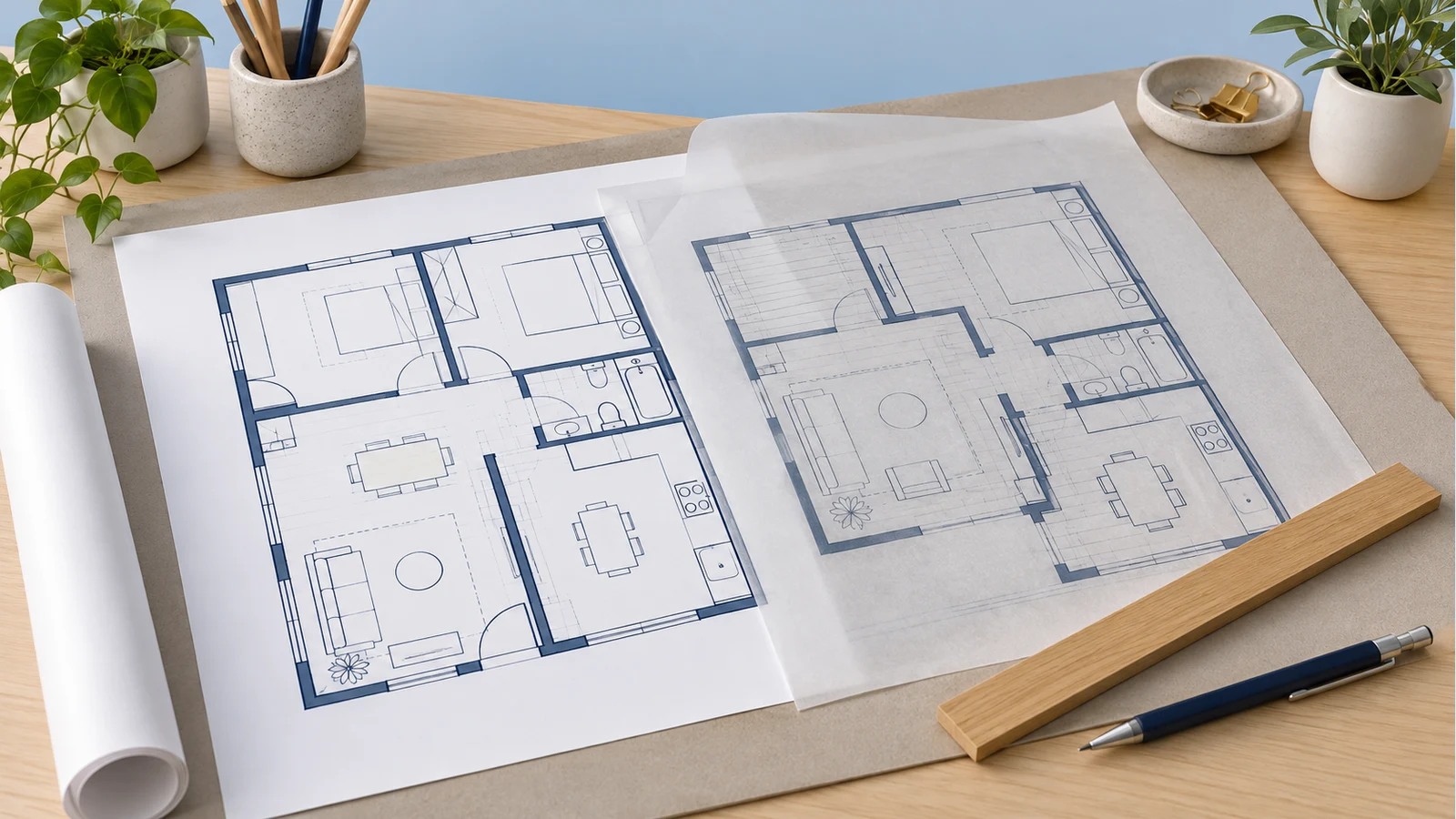
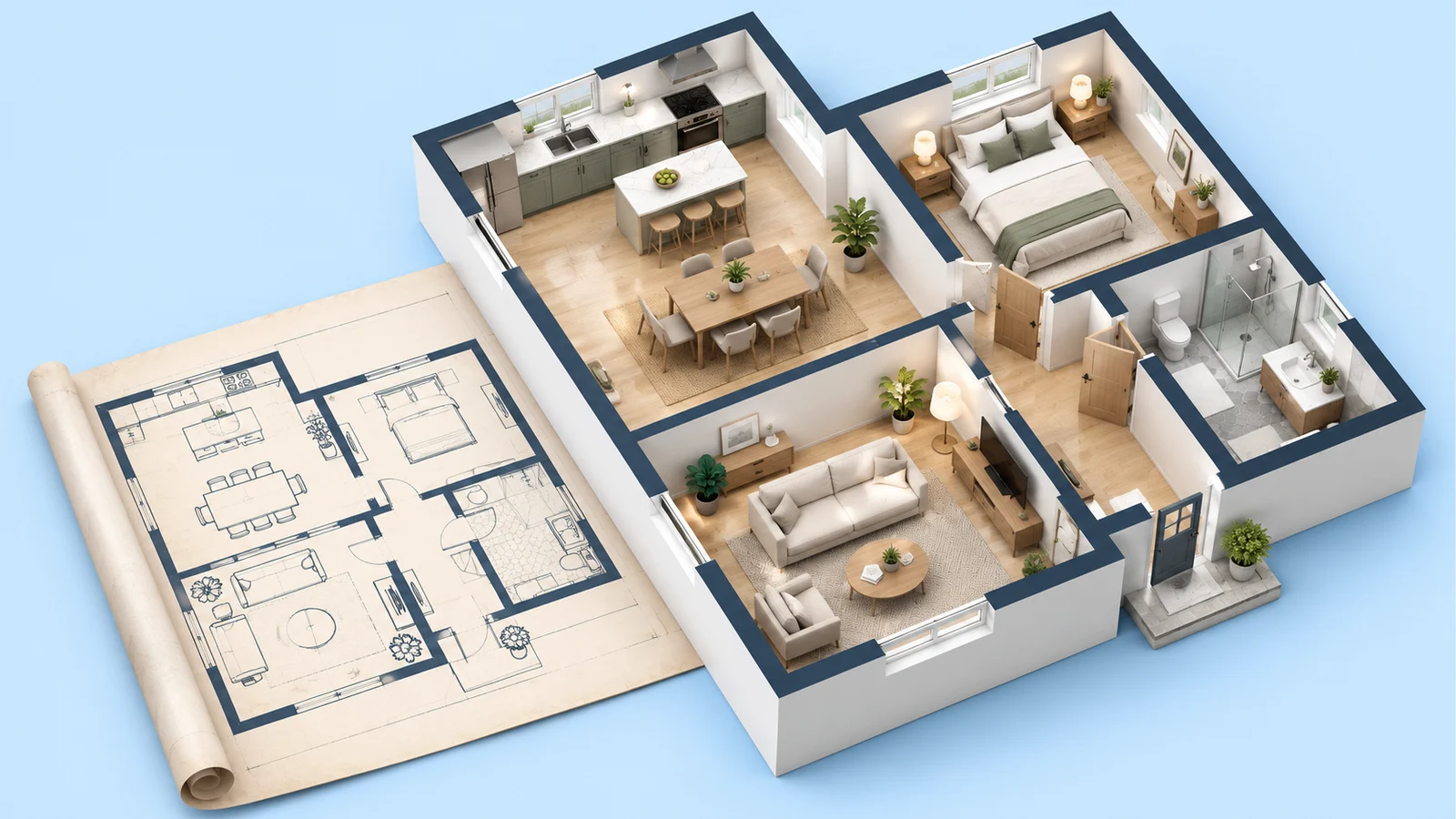
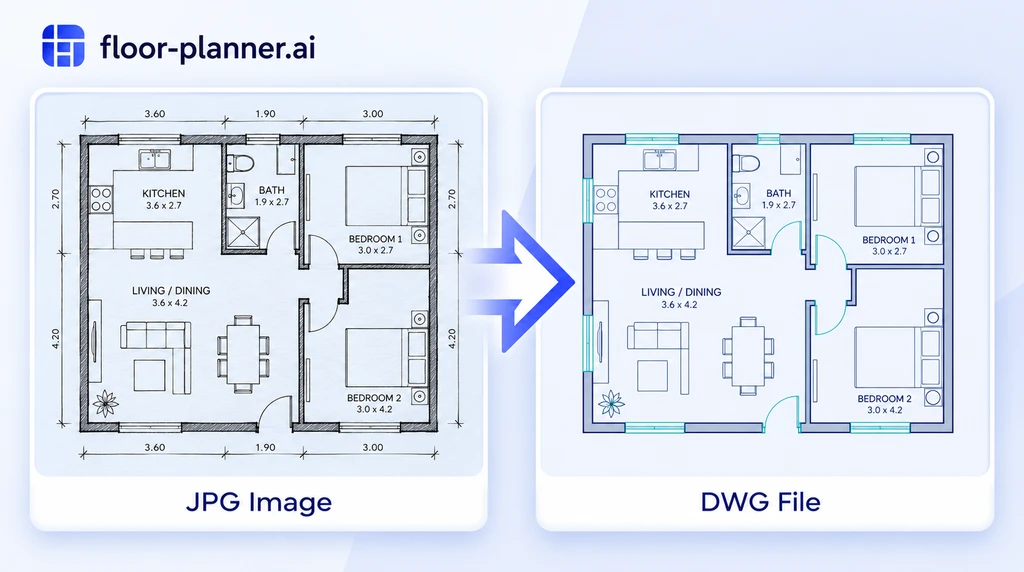
Floor plan conversion preview

Move a JPG Drawing into Your CAD Workflow

Bring an existing image through upload, conversion, preview, and download without installing a separate desktop conversion tool.

A JPG-First Upload

Start your JPG to DWG task with the JPG or JPEG drawing you already have. Keep the original image available so that you can compare labels and boundaries after conversion. If your source is another image type or you want the broader upload guide, visit the Image to DWG Converter. The same conversion workspace handles those inputs; this page focuses on preparing JPG scans for a DWG handoff.

Conversion and Text Options

Choose your JPG to DWG options and decide whether to recognize text before submitting the task. Review account and credit requirements shown in the tool. When comparing settings, use the same source drawing and inspect the resulting details. Mode names do not guarantee that every symbol, dimension, or wall will be interpreted correctly, and text recognition should be checked against the scan.

A Preview for Review

Inspect the JPG to DWG preview to see whether the main drawing is recognizable. Compare the overall boundary before examining corners, openings, and small labels. Use the Floor Planner preview to note missing details rather than approving the file on appearance alone. The downloaded DWG still needs to be opened in your receiving application for object-level checks and any necessary corrections.

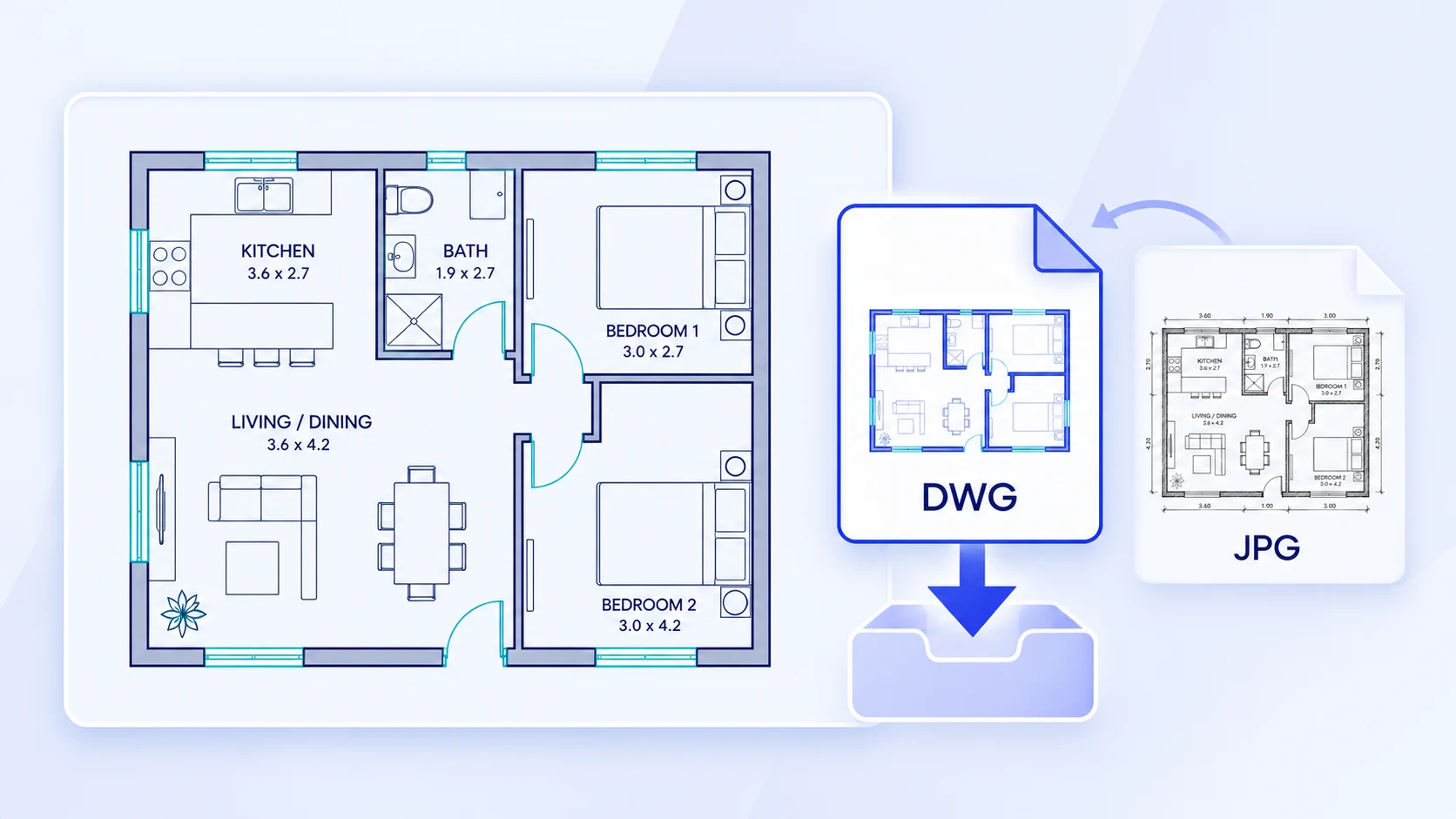
A Downloadable DWG

Download your JPG to DWG result for review in DWG-capable software. Keep a copy of the initial download before editing, and save corrected versions with a clear project reference. A DWG extension identifies the file format; it does not establish that every detail has been recovered or that the drawing meets a project standard. Confirm the handoff requirements with the person who will use it.

How to Turn a JPG into DWG Online

Follow the JPG to DWG workflow from a readable scan to a file you can inspect in CAD.

1

Upload Your JPG

For JPG to DWG conversion, choose the clearest available JPG or JPEG. Include the complete drawing and useful dimension labels while cropping unrelated desk surfaces or page margins. Avoid enlarging a small screenshot as a substitute for the original scan. If shadows or reflections obscure an important edge, capture the drawing again before starting conversion.
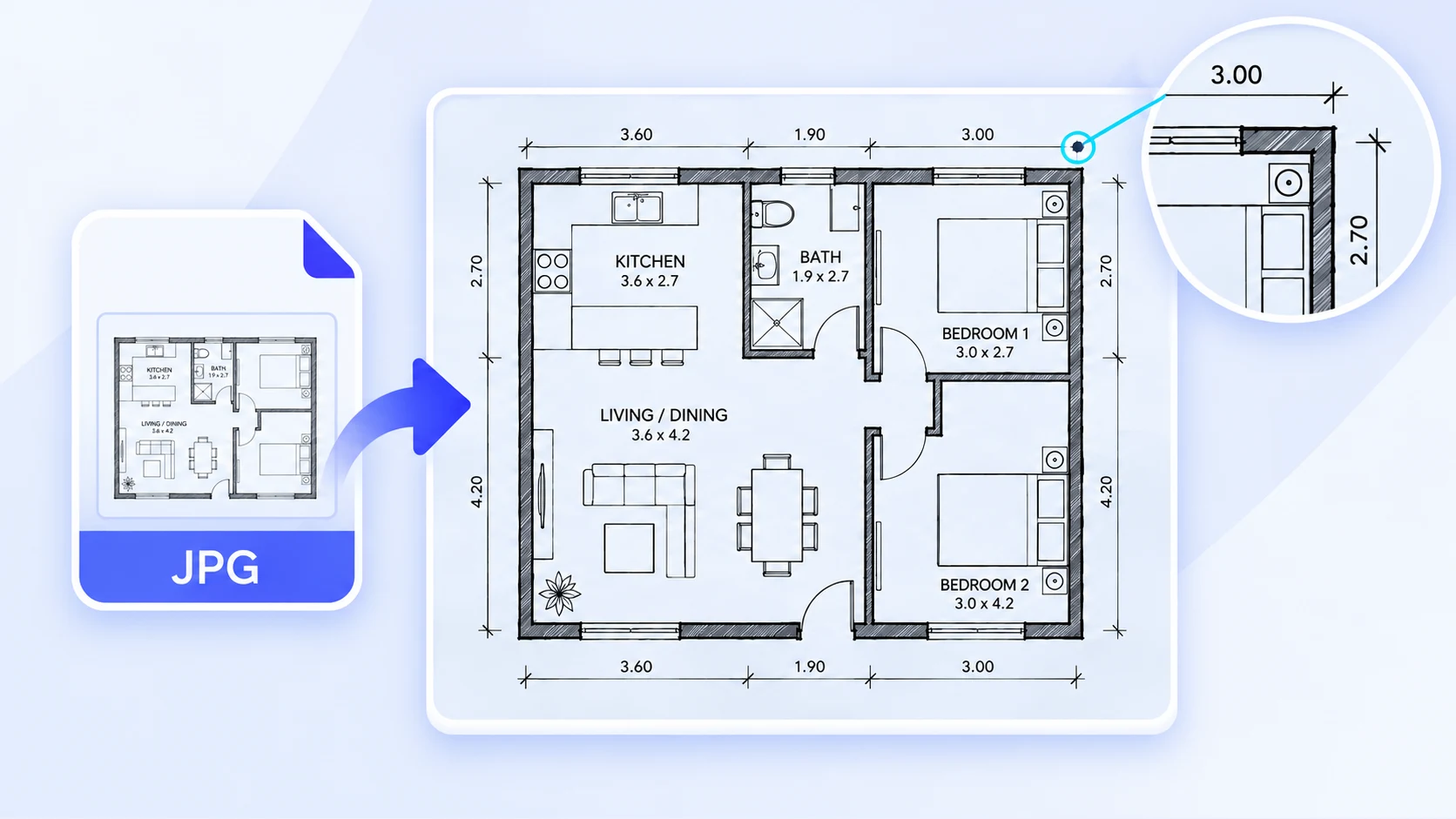
JPG drawing prepared for upload with a readable source detail
2

Choose Your Options

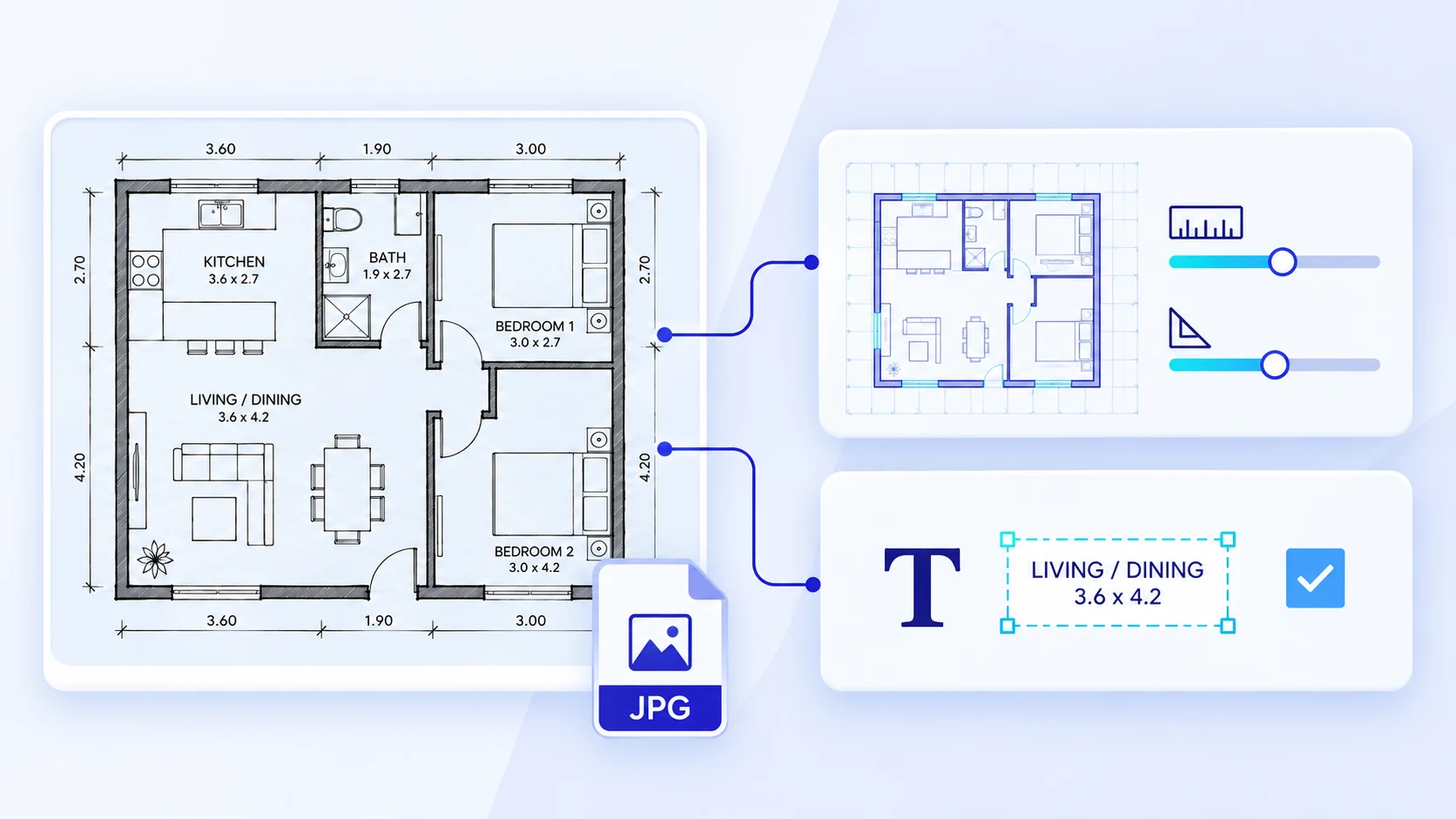
Keep DWG selected for JPG to DWG conversion, choose the mode, and set text recognition. Check the tool's displayed account or credit conditions before submitting. The task uses an online service, so allow processing to finish before inspecting the result. No separate software installation is required for this conversion stage.

Illustration of conversion and optional text recognition settings
3

Review the Drawing

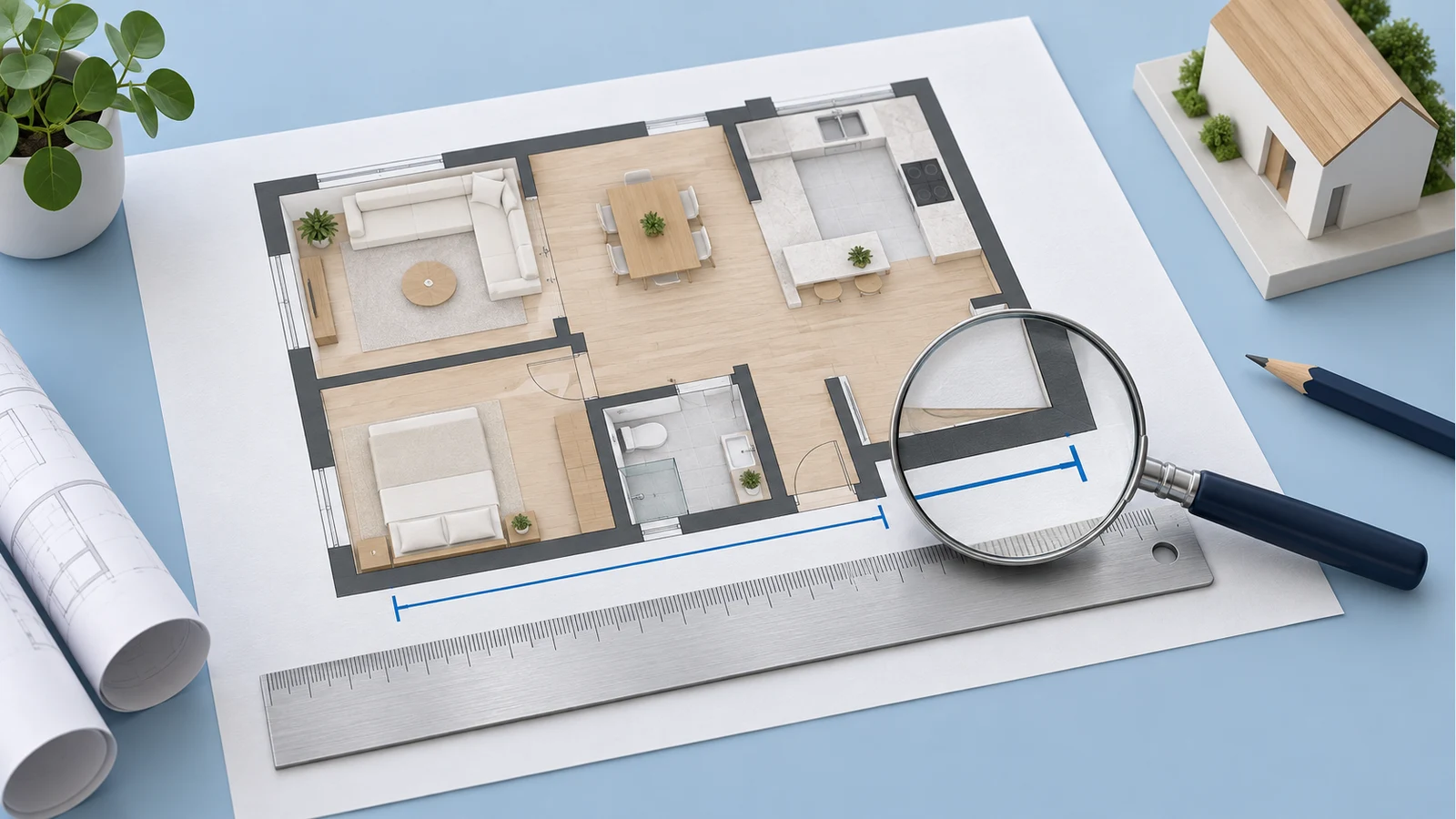
Compare the JPG to DWG preview with the source image. Check major walls or outlines first, followed by small details and labels. Make a short list of gaps or uncertain features to revisit in CAD. A clean-looking preview can still contain objects that need correction, particularly where the original lines were faint or compressed.

Source drawing compared with a CAD preview detail
4

Download and Open

Test the JPG to DWG result in the CAD software and version used by your team. Compare a known measurement, inspect relevant objects, and save a working copy before making changes. Keep the source image beside the file during review so another person can trace an uncertain detail back to the original drawing.

DWG download illustration with the original JPG kept for comparison

Start with a Readable Source Drawing

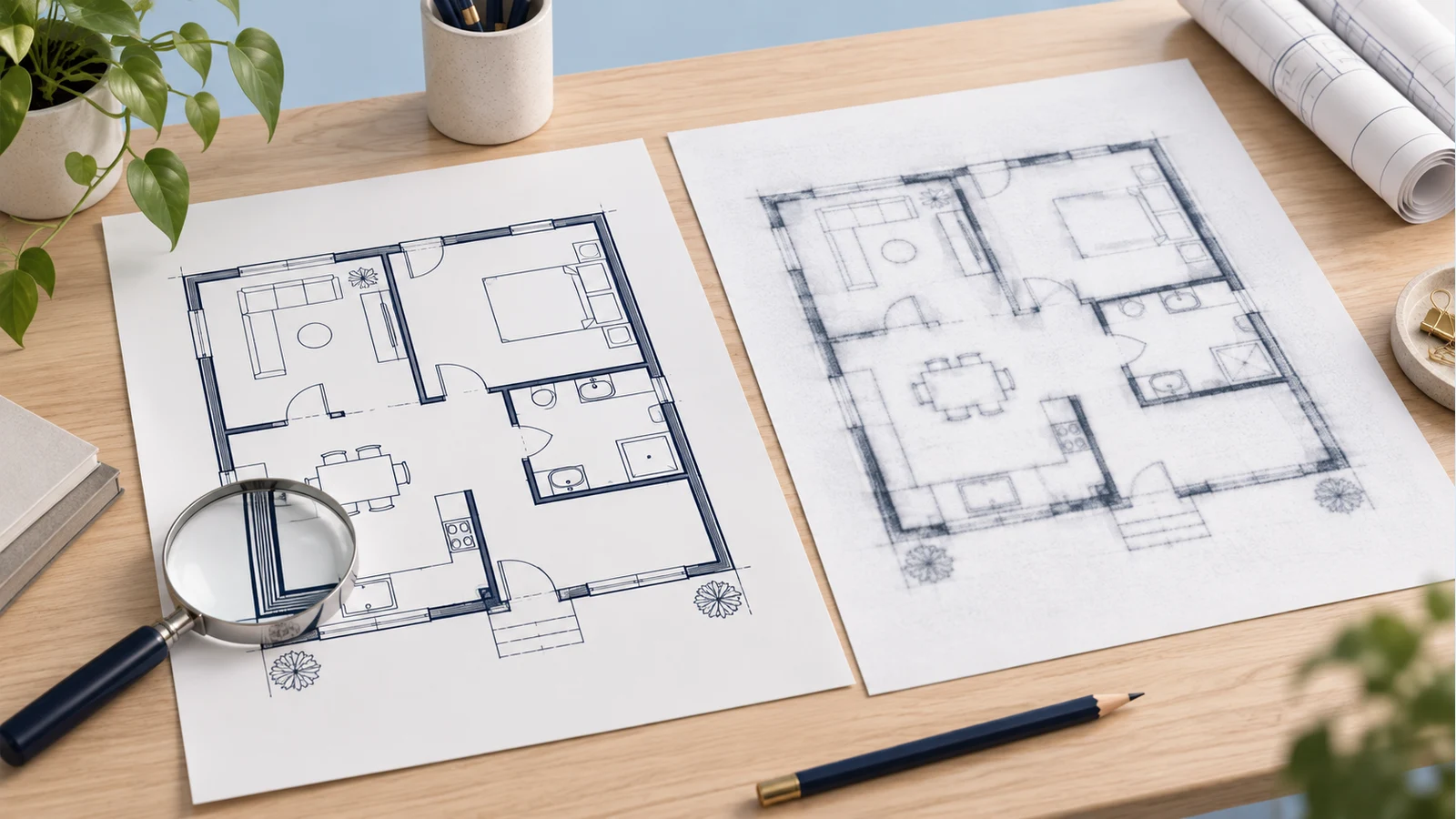
Source quality affects what JPG to DWG conversion can recover for review. Prepare the image before expecting useful CAD output.

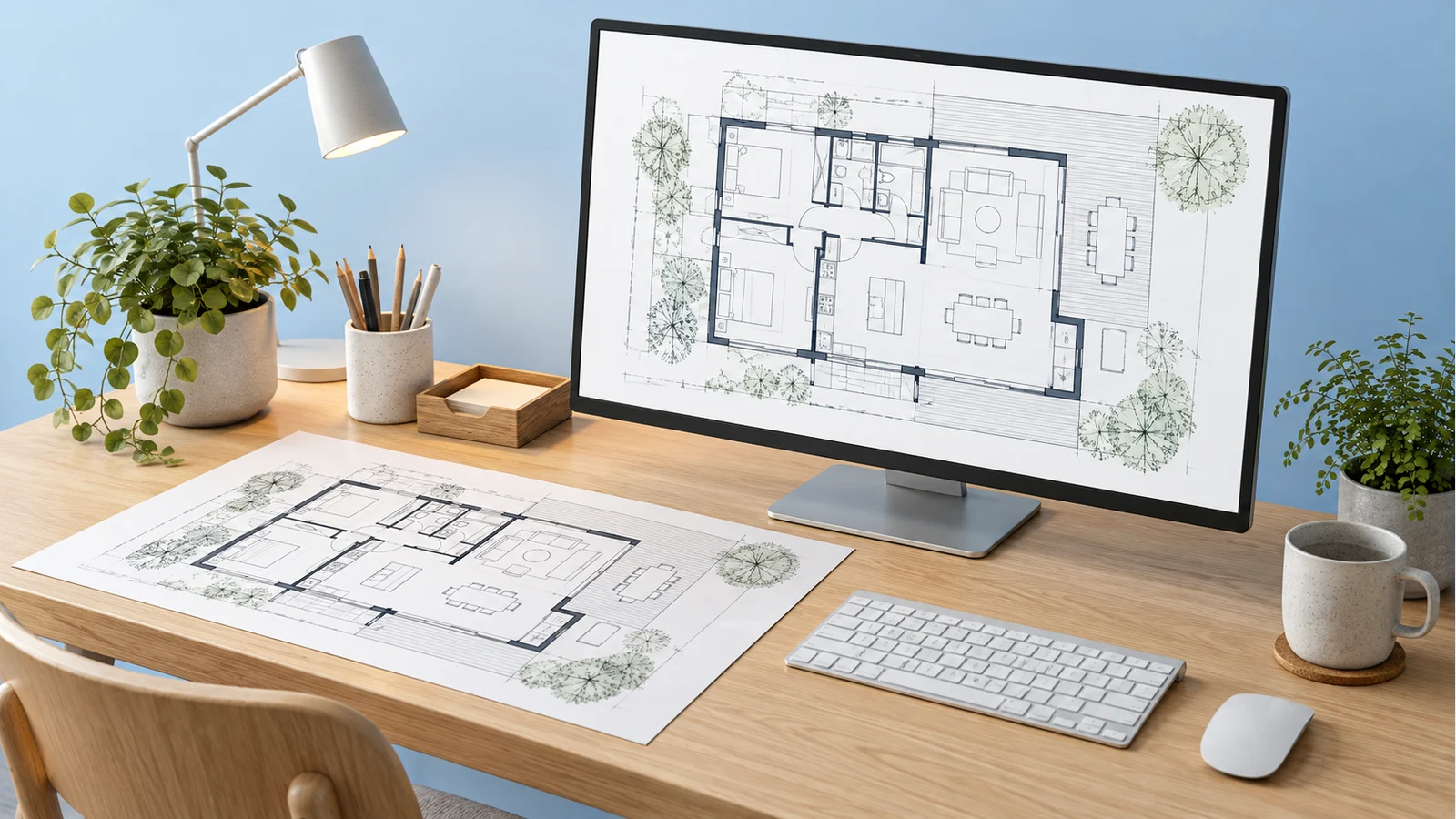
Clear source drawing with a readable floor plan

Keep the Original JPG

For JPG to DWG tasks, start with the clearest JPG available. JPG and JPEG use the same image format. Use the original or least-compressed copy where possible. Repeated saving can blur fine linework and small lettering. Renaming the extension does not select a different processing engine, and converting a low-quality image to another format does not restore detail that was already lost.

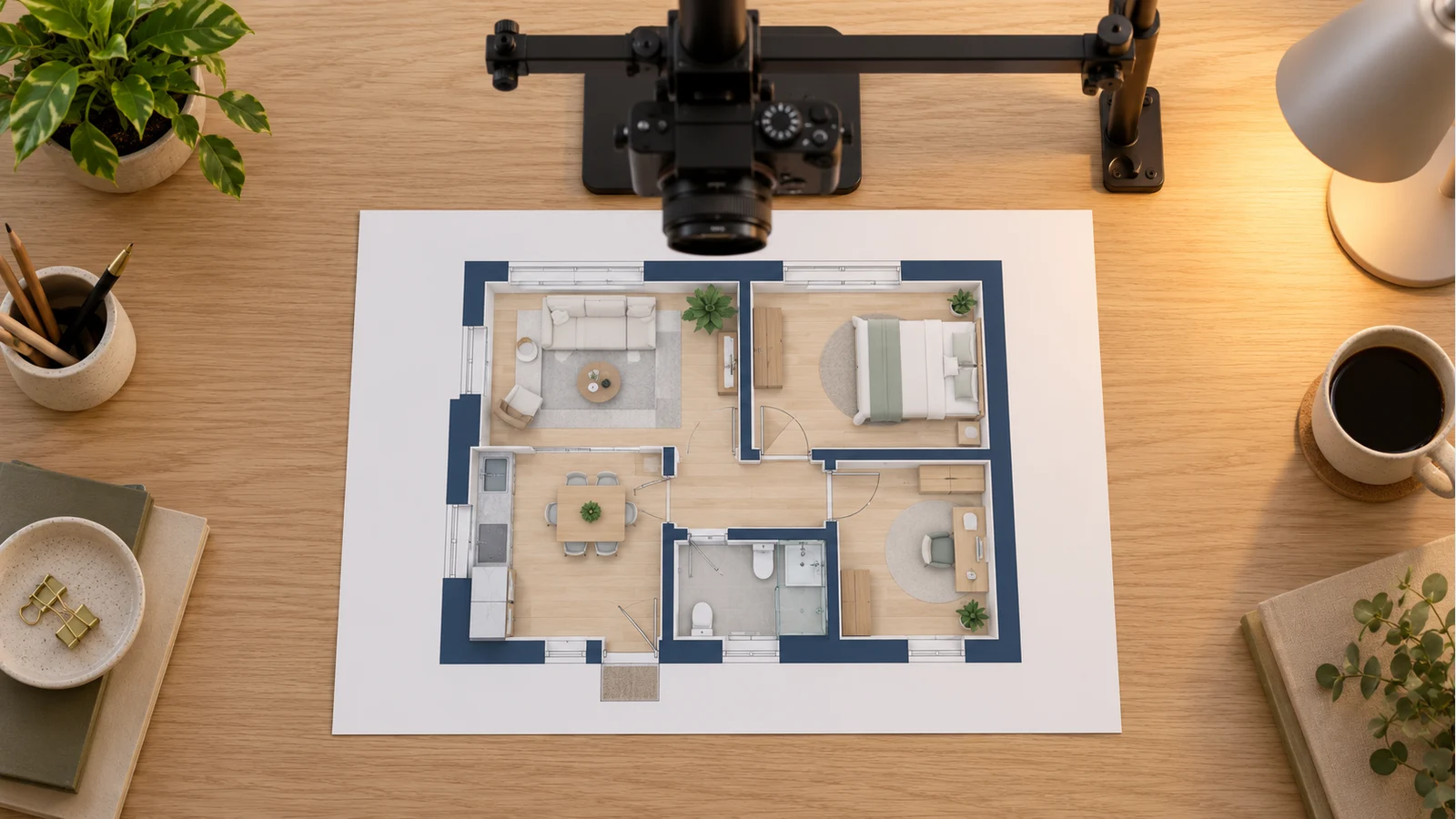
Paper plan photographed straight on

Photographed Paper Plans

For a photographed JPG to DWG source, keep the camera parallel to the page and avoid shadows or clipped corners. Perspective distortion can change the apparent relationship between edges, even when the image looks readable. A straight scan is preferable when available. Any uncertain dimensions should be verified from a reliable source rather than inferred from the photograph.

Drawing linework against a clear background

Check the Image Background

The shared uploader also accepts PNG and BMP files. Review the source against a clear background before uploading. Check that pale lines remain visible against the background and that transparent areas display as expected. Use the same review process after conversion: compare geometry and annotations with the source instead of assuming a particular extension guarantees better output or automatic layer organization.

Reference dimension retained for scale checks

Labels and Reference Dimensions

Preserve a reliable measurement for checking your JPG to DWG result. After import, use it to check the drawing scale in CAD. Review decimal points, unit notes, and small text individually. The image's pixel dimensions do not define real-world units, and the conversion should not be treated as automatic measurement verification.

DWG or DXF from the Same JPG?

Choose the delivery format your project or receiving application needs. The extension alone does not determine the completeness of the converted drawing.

Follow the Project Requirement

Choose DWG when the team requests a DWG file for its CAD workflow. If the recipient needs an exchange format, confirm whether DXF meets the project requirements. DXF is not limited to manufacturing, and neither option means that a scanned image automatically becomes a fully organized project drawing.

CAD drawing prepared for project delivery

Check the Receiving Software

Ask which application and version will receive the file. Open a converted sample there before preparing the full handoff, and check objects and units after import. Support for a format is different from tested compatibility with every version or every type of drawing content.

Checking a drawing in a receiving application

Plan the Drawing Handoff

Agree on naming, units, required revisions, and who will review the result. Keep the original image and note unresolved details. Layers, blocks, and other drawing structures should be inspected in the actual file; their availability in a format specification is not proof that conversion reconstructed them.

Source drawing and CAD files organized for handoff

Continue a Project from an Existing Drawing

Use JPG to DWG conversion as a reference-building step, then apply the checks needed for the project.

Existing home layout used as a renovation reference

Renovation Planning References

Use JPG to DWG conversion as a reference step when discussing room changes from a scanned plan. Compare the result with current measurements and identify features that need a site check. An old drawing may show an earlier arrangement, so keep its date and source with the converted file.

JPG to DWG FAQs

Check upload formats, editing requirements, and what the conversion does not establish for your project.

Bring Your JPG Drawing into CAD

Upload a clear source drawing, choose conversion options, and preview the result before downloading a DWG for review.

Convert JPG to DWG