Loading credits…
Advanced Options

JPG to DXF Converter

Start your JPG to DXF task with a scan or line drawing. Choose text recognition, preview the converted result, and download a DXF for review in your CAD workflow.

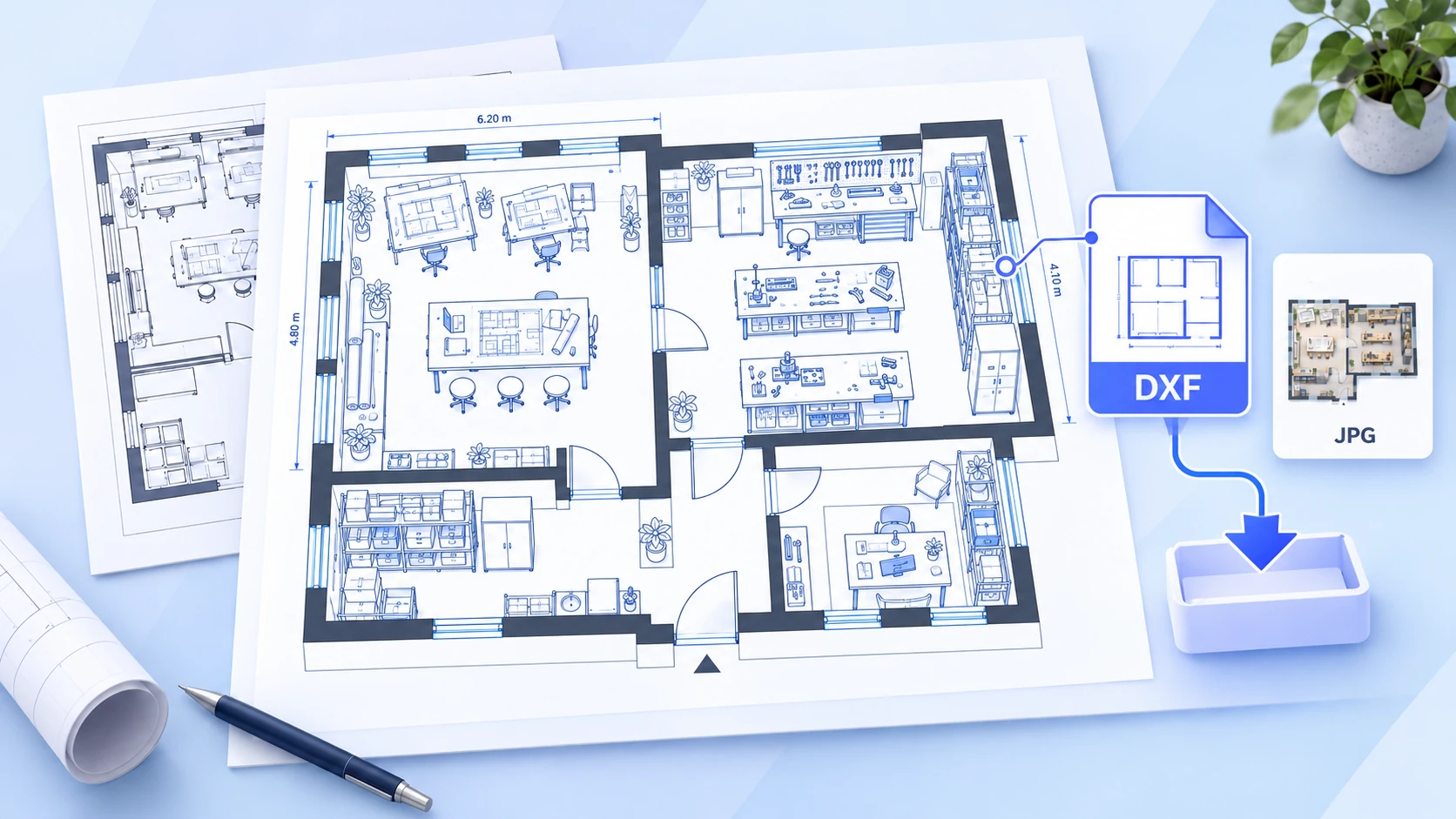
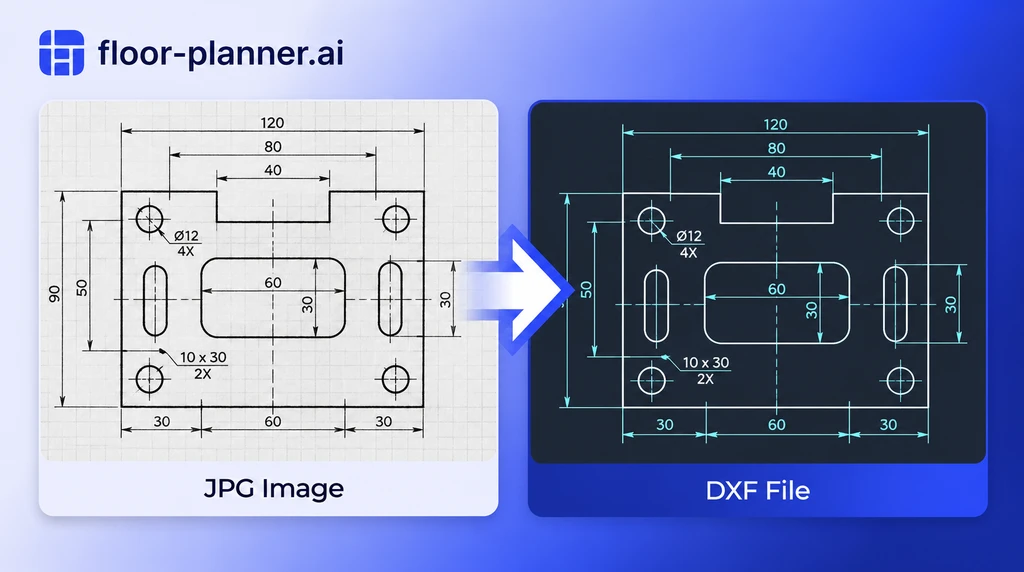
Floor plan conversion preview

From a JPG Scan to a DXF Handoff

Manage JPG to DXF uploads, settings, previews, and downloads in one workspace.

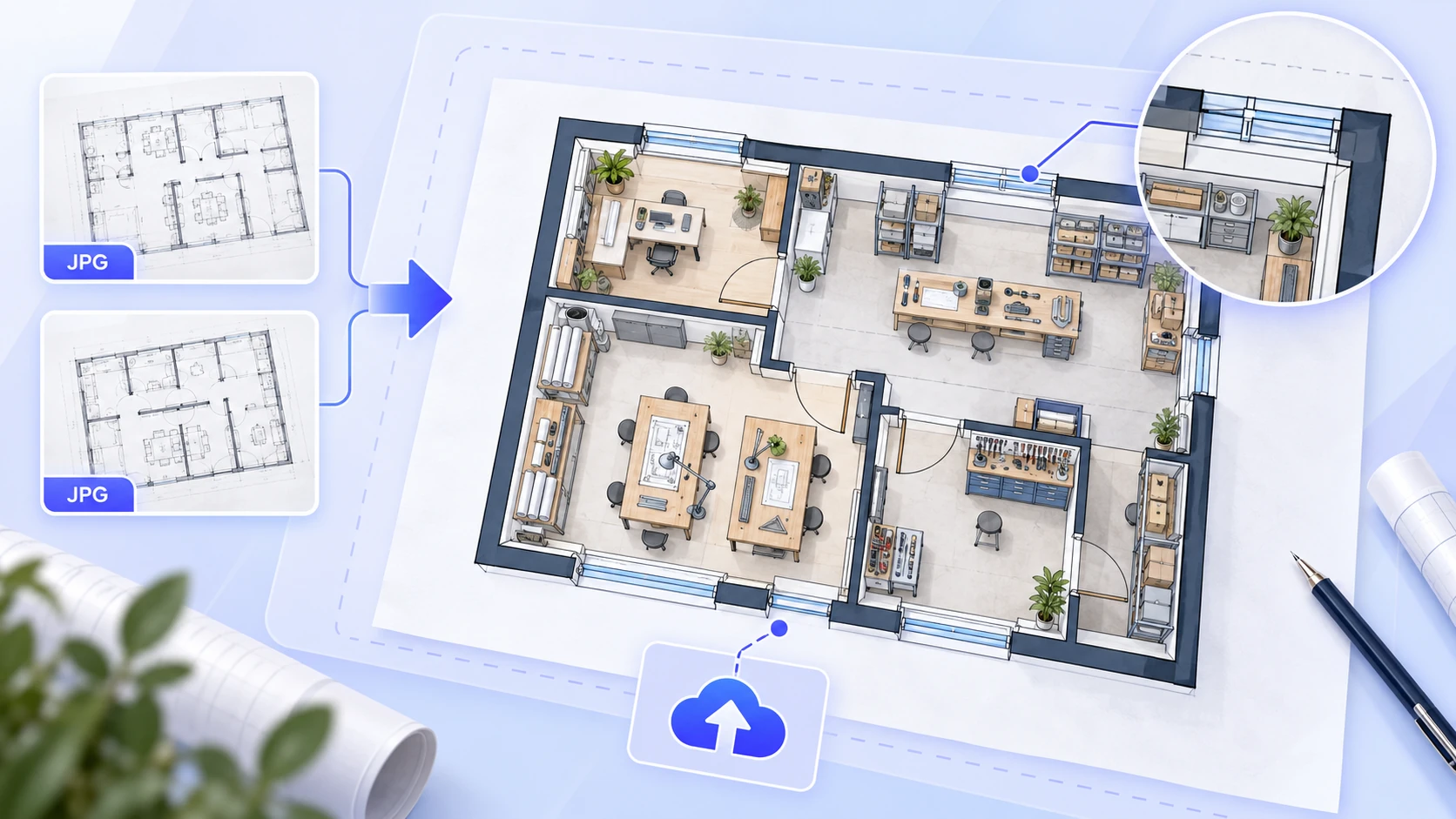
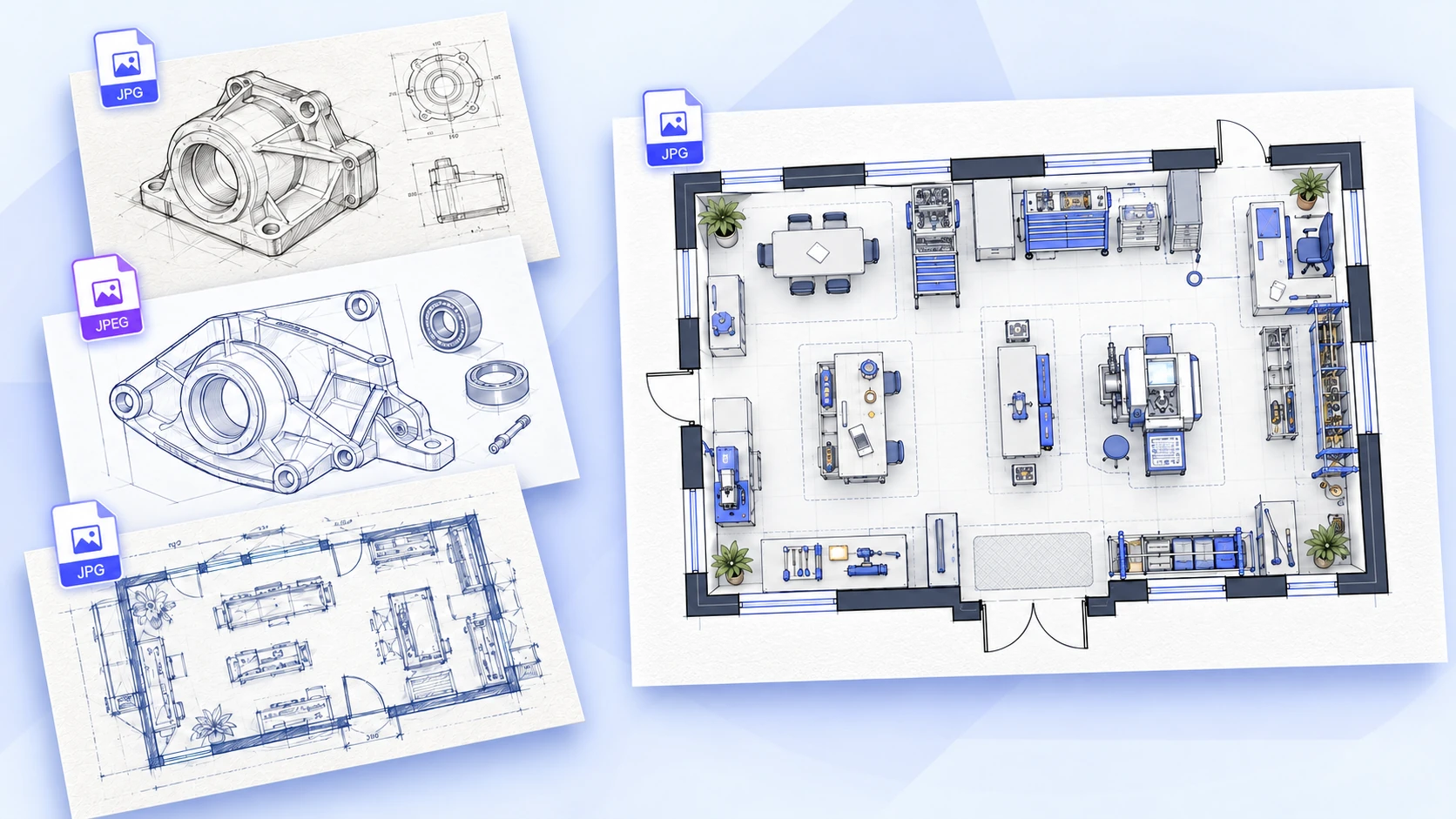
JPG technical drawing prepared for upload

JPG Drawing Uploads

Start JPG to DXF conversion with your existing drawing, without changing its extension. For other source-image workflows, explore the Image to DXF Converter. Keep the original scan as your reference throughout the job. Renaming a file or exporting it at a larger pixel size does not recover detail already lost through compression. When selecting between several copies, prioritize legible dimensions, clean boundaries, and a complete view of the drawing rather than the largest file alone.
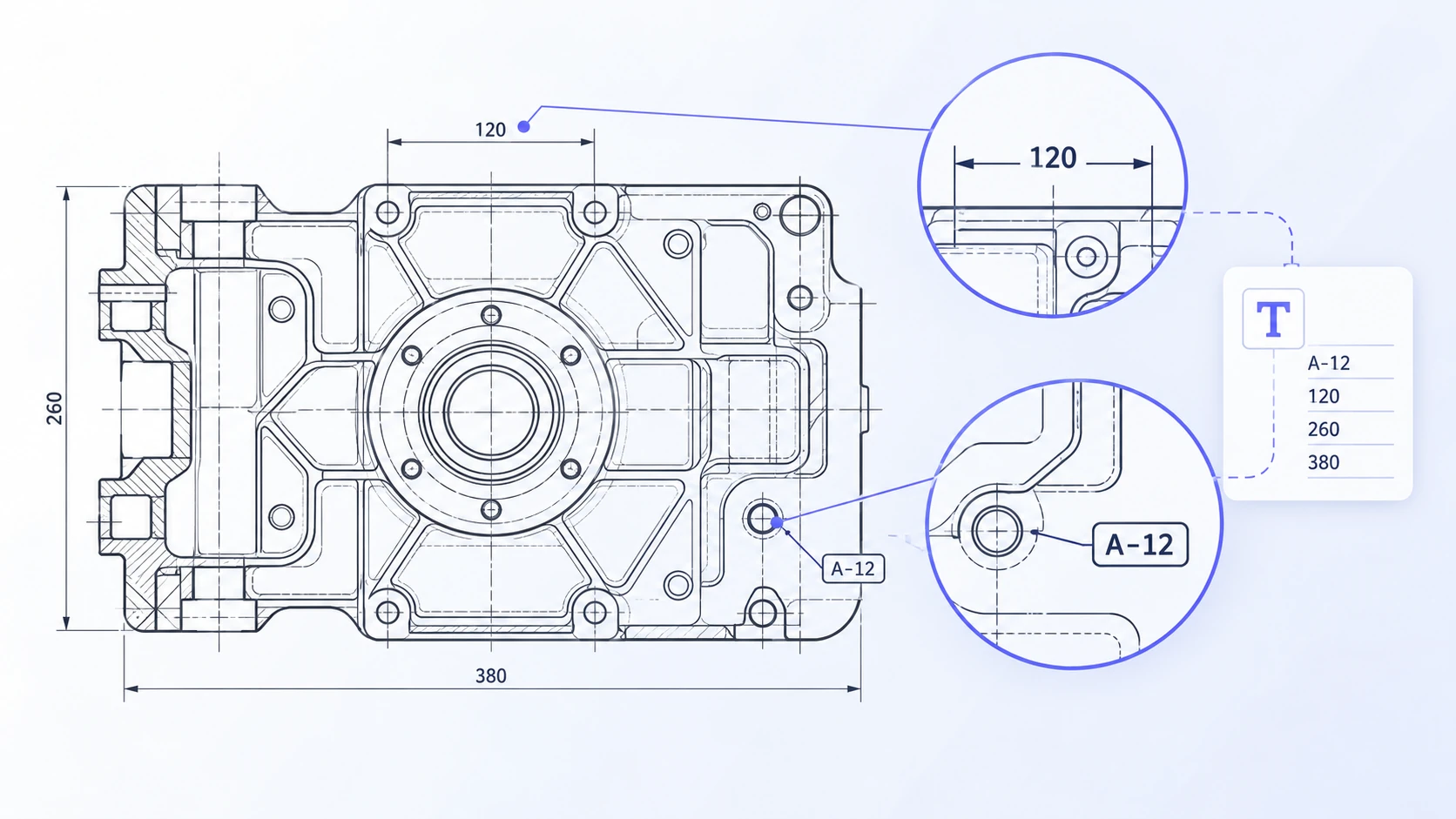
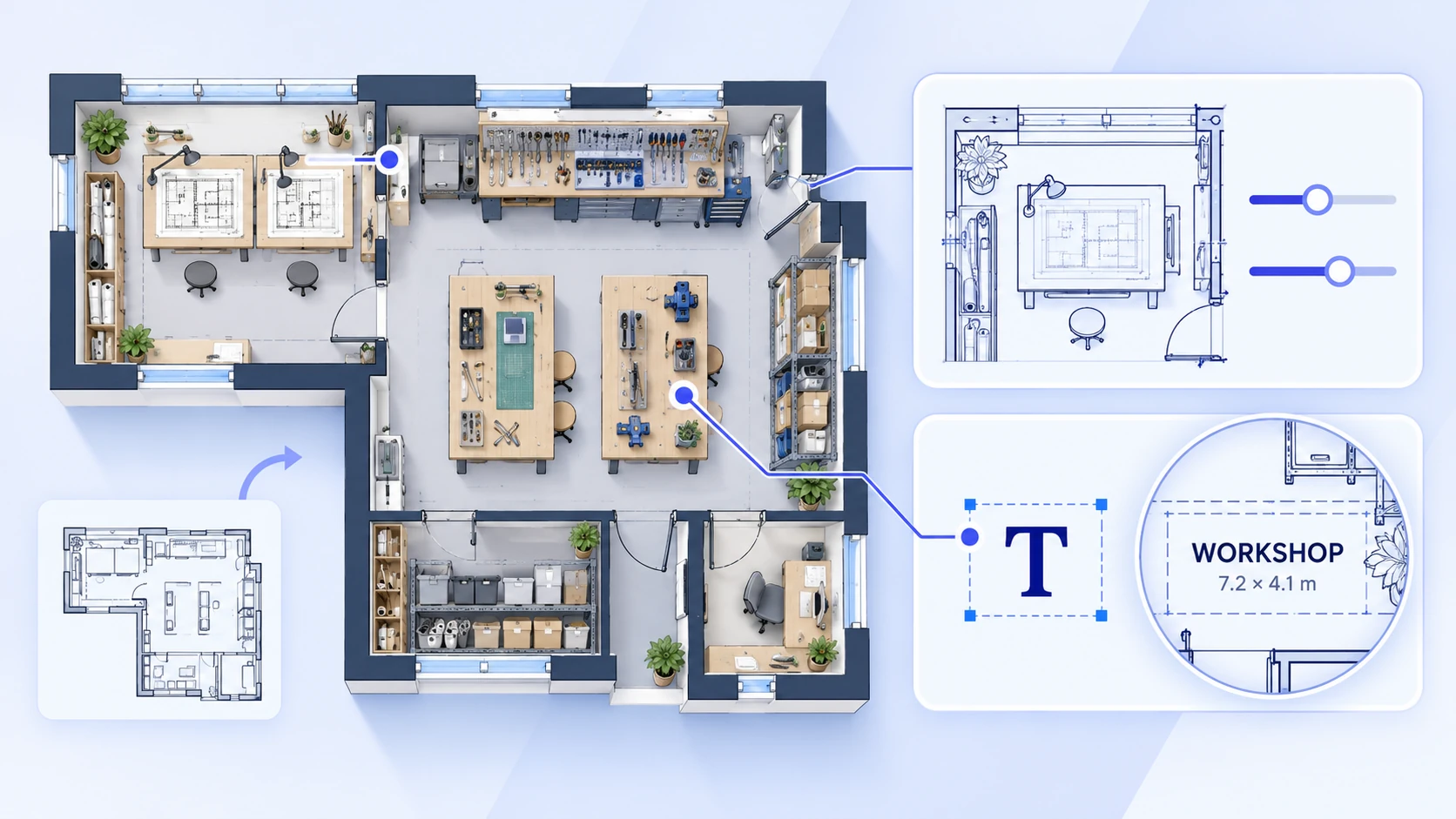
Small drawing annotations reviewed for text recognition

Text Recognition Options

Set text recognition before starting the JPG to DXF task. Review recognized labels against the scan, especially where small characters overlap drawing lines. A part number or dimension label can be important even when it occupies little space in the image. Check punctuation, decimal points, and similar-looking characters after processing. If annotations make the converted view difficult to read, compare the source with another run using different text settings before choosing a working file.

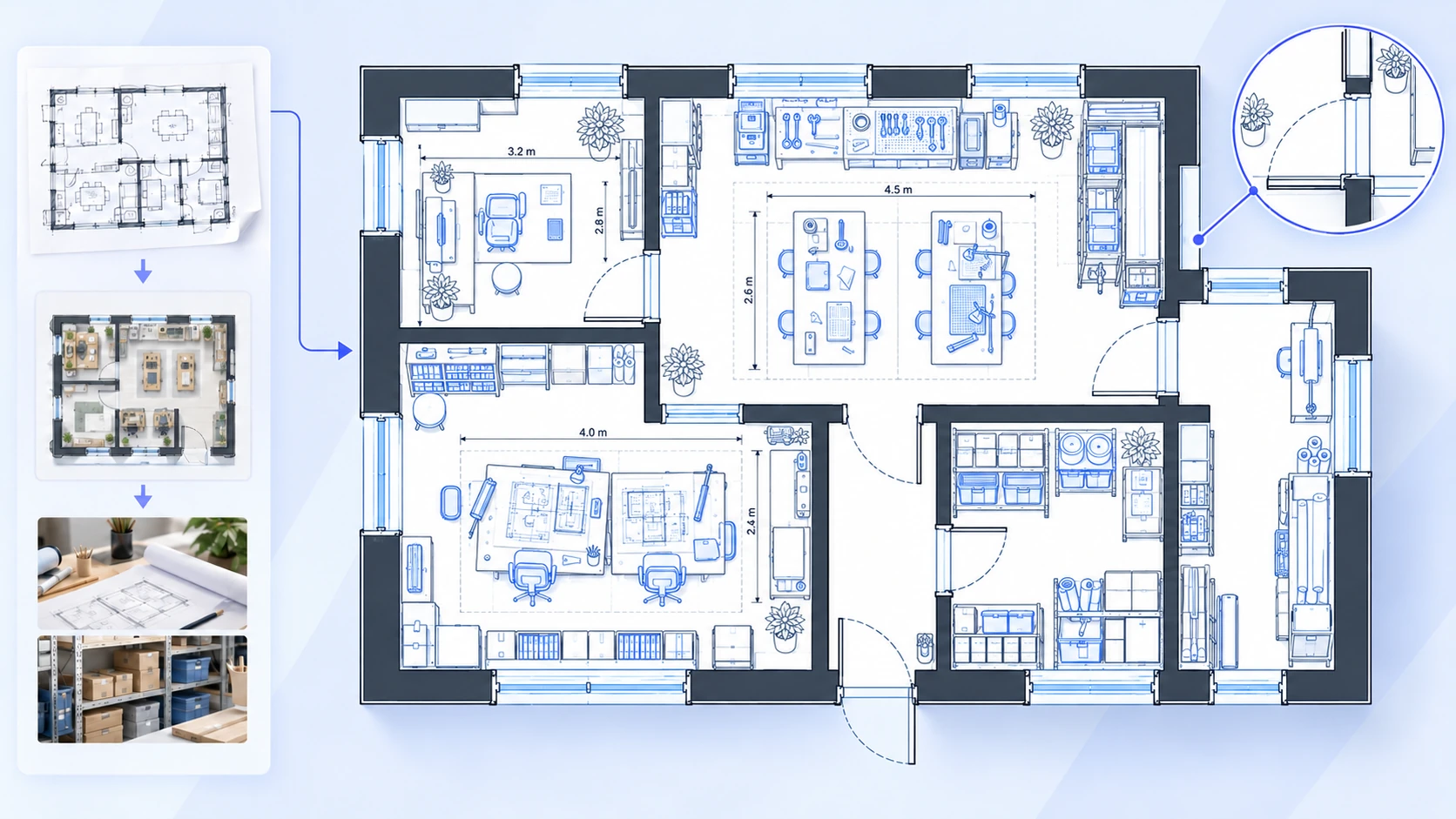
Technical linework reviewed before download

Preview Before Download

Check the JPG to DXF preview after processing. Look for missing details or fragmented lines before moving the file into another application. Inspect the overall shape first, then compare corners, holes, and narrow gaps against the JPG. A recognizable silhouette is not enough to establish that a contour is continuous. Use the Floor Planner preview to identify areas needing closer examination, and complete object-level checks after import into CAD or CAM software.

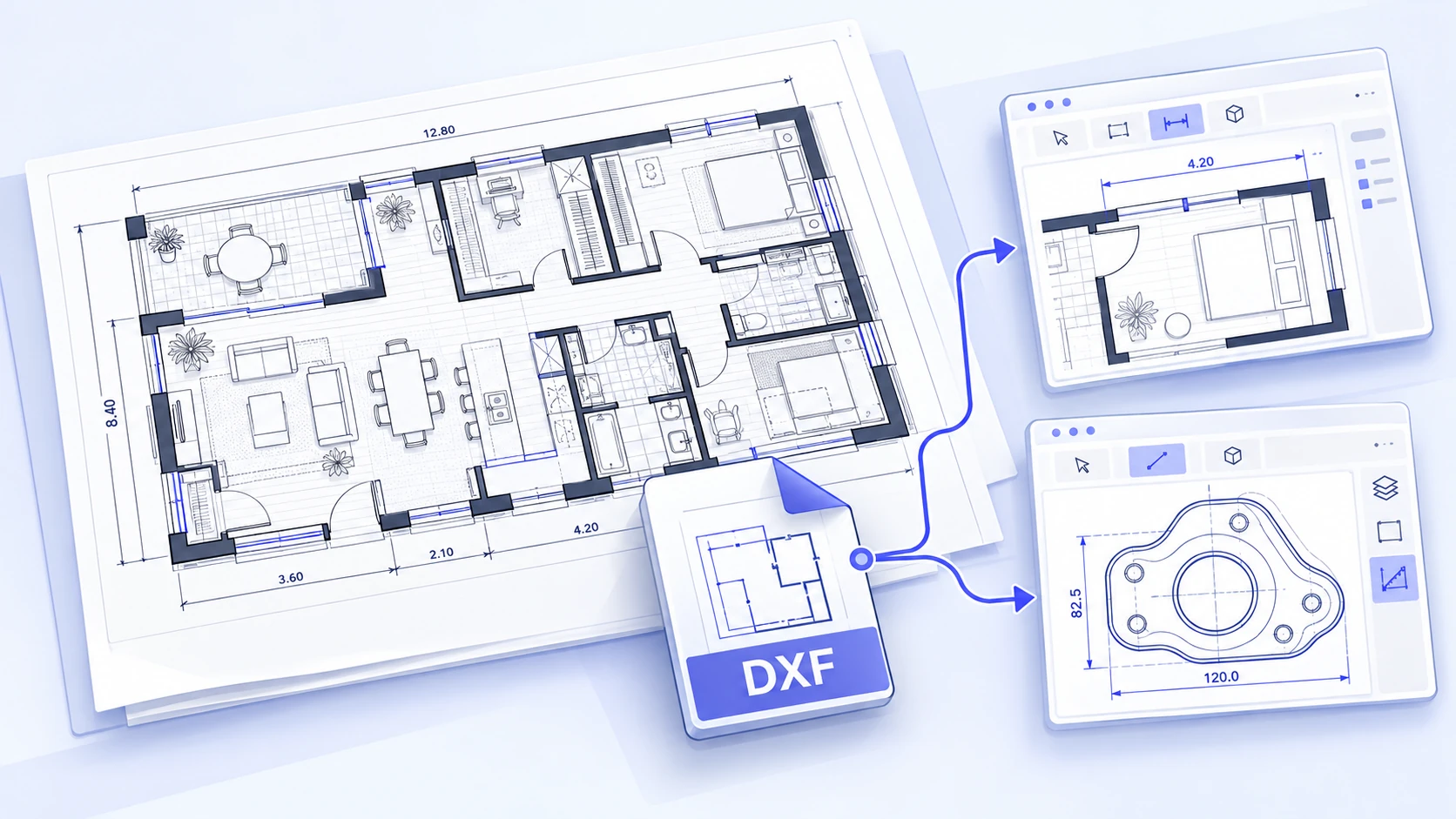
DXF drawing prepared for review in another application

DXF for the Next Application

Open the JPG to DXF result in software that supports the format. Check imported objects and units before editing or preparing a manufacturing workflow. Ask the recipient which DXF version and units their application expects before preparing a handoff. Test a sample in that application and preserve a source copy alongside it. If the import needs changes, record them in the CAD stage instead of assuming that every program interprets a drawing identically.

Convert JPG to DXF in Four Steps

Bring a readable scan and follow the JPG to DXF workflow below.

Upload Your JPG

Select a drawing from your device for JPG to DXF conversion. Keep the full outline and useful dimension labels when cropping. For a photographed plan, hold the camera parallel to the page and avoid shadows or reflections. Check that thin lines and small annotations remain readable; if an edge is obscured, capture the drawing again before uploading.

JPG drawing prepared for upload

Choose Your Options

Keep DXF selected for JPG to DXF conversion, choose the mode, and set text recognition. Review any account or credit requirements shown before starting. When comparing settings, use the same source drawing and check the resulting geometry and labels. Conversion settings do not replace the toolpath, material, or machine setup required later in CAM software.

Illustration of conversion and optional text recognition settings

Review the Preview

When JPG to DXF processing finishes, compare the preview with your source. Check the overall outline first, then inspect corners, holes, narrow gaps, and small labels. Look for missing details, fragmented lines, or shapes that differ from the scan. Note areas needing correction; the preview helps you review the drawing, while continuity and object-level checks still belong in CAD or CAM software.

Source outline compared with a DXF preview detail

Download the DXF

Save the JPG to DXF result and open it in the receiving application. Confirm units and measure a known feature before relying on the drawing. Check whether segments meet as expected, and compare duplicate or unwanted objects with the source before removing them. Keep the initial download and save corrected versions separately so that later changes remain traceable.

DXF download illustration with the original JPG retained

Prepare a Clear Source Drawing

A readable source gives you a clearer basis for checking JPG to DXF results.

Use the Original JPG

For JPG to DXF tasks, JPG and JPEG use the same image format. Start with the original or clearest available file rather than repeatedly saving a compressed copy. Screenshots of drawings embedded in messages can lose detail before they reach the converter. Request the original scan when it is available, especially for fine hatching, small radii, and tightly spaced labels. A cleaner source can reduce the amount of interpretation needed during later review.

Keep Lines and Labels Readable

For JPG to DXF conversion, prefer a straight scan to a blurred photo. Fine lines, small text, shadows, and compression artifacts can make drawing details harder to recover.

Check the Background

The shared uploader also accepts PNG and BMP files. Use a clear background and inspect transparent areas before upload; changing the file extension does not restore lost detail. Check that pale lines remain visible against the chosen background and that a dark viewer background has not hidden part of the source. Keep decorative borders and unrelated page content out of the image when practical. These preparation steps help you judge the result without implying separate algorithms for each extension.

Keep a Known Dimension

Include a reliable reference dimension when possible. Use it to check scale after import instead of treating image pixels as real-world measurements. Check more than one known feature when the drawing allows it, especially across different parts of a photographed page. If those checks disagree, revisit the source capture and geometry before rescaling the entire drawing. Record the units used for the revised file.

Start Your Next Workflow with a Drawing

Use the converted file as a starting reference, then check the details required by your receiving application.

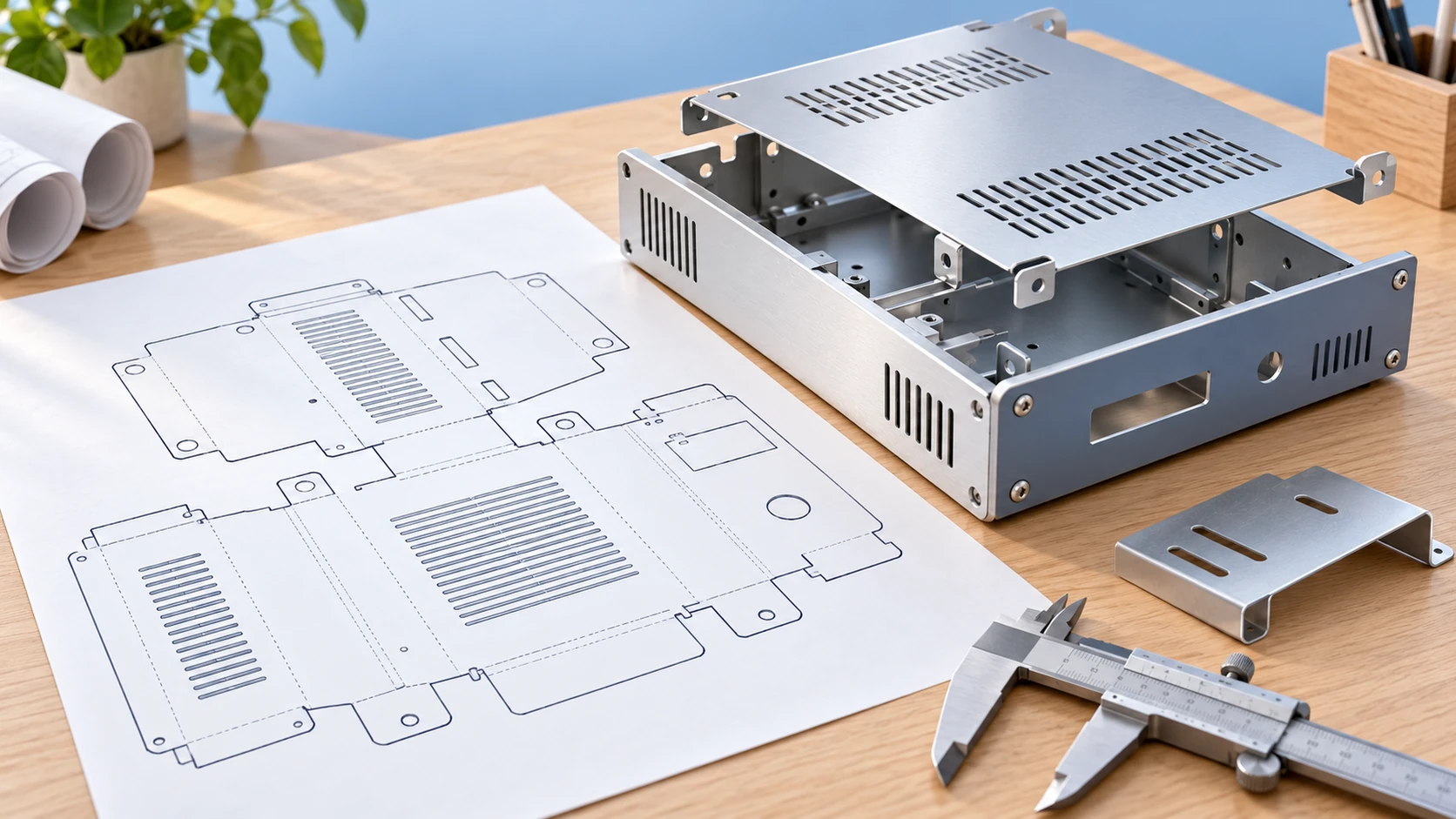
Metal part drawing used as a CAD reference

Sheet-Metal Part References

Use JPG to DXF conversion to bring a scanned part outline into CAD/CAM preparation. Confirm units, dimensions, duplicate lines, and closed contours before creating toolpaths. Distinguish the part boundary from construction lines, annotations, and hole markings. The person preparing the job should decide which objects define a cut and which are reference information. Material thickness, allowances, and machine settings still need to be specified in the normal production process rather than inferred from a JPG.

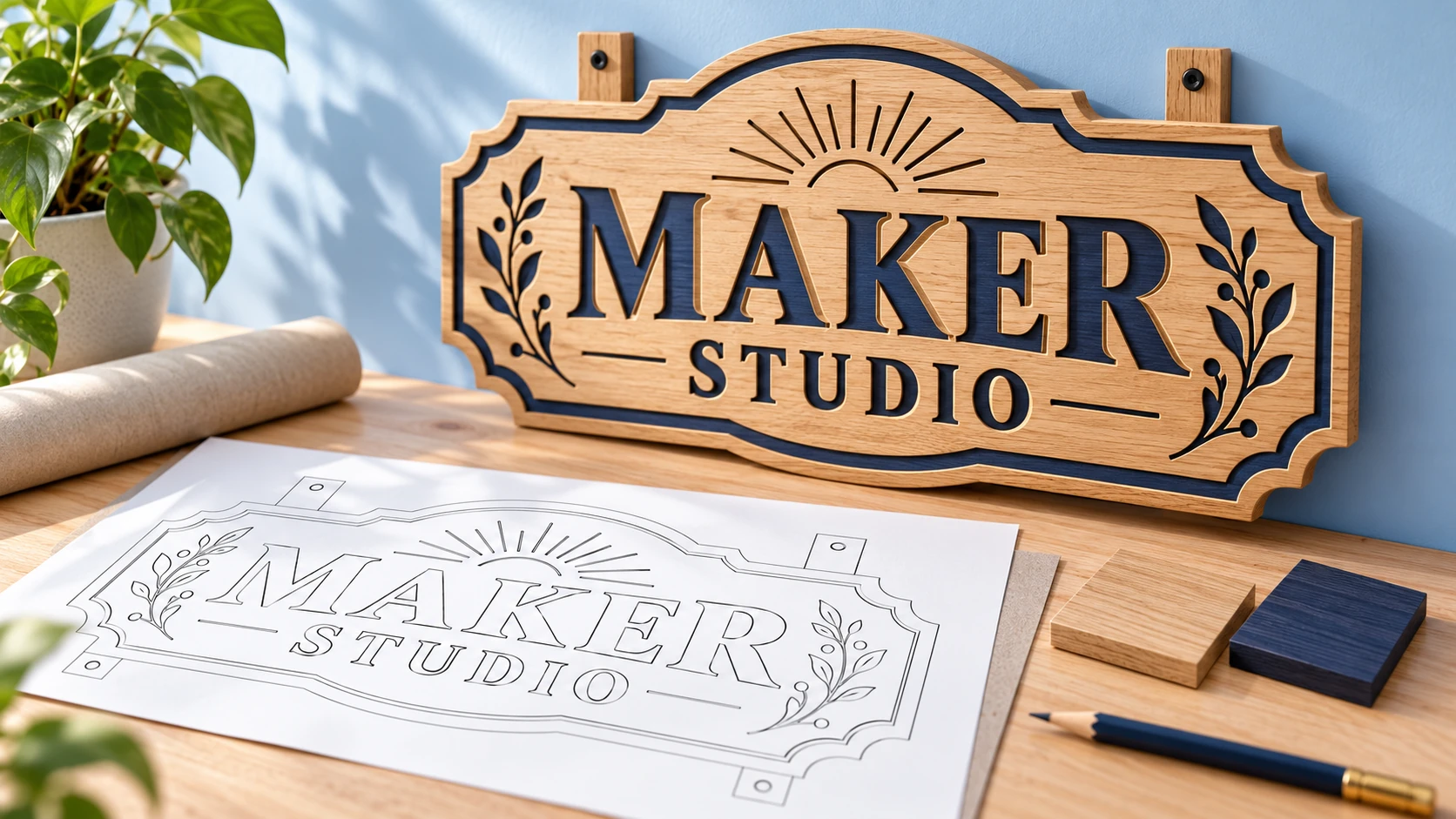
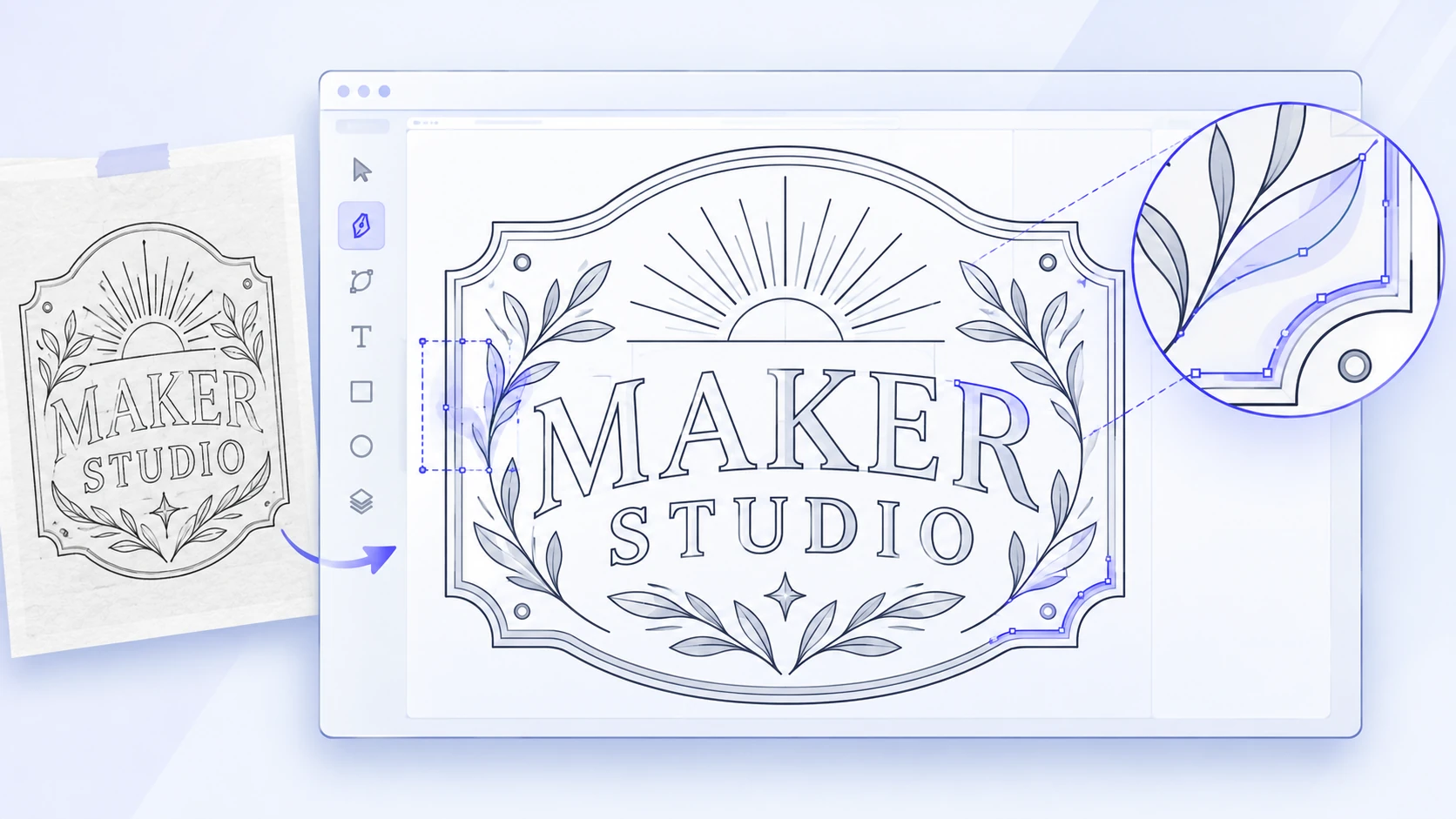
Sign artwork prepared for outline review

Sign and Panel Outlines

Start JPG to DXF conversion with a clear sign or panel outline. Inspect contours after import, then set cutting or engraving operations in your CAM software. Separate the visual appearance of the sign from the paths required to make it. Text, decorative lines, and interior shapes may need different treatment after import. Preview the planned operations in the receiving software and verify the design at its intended physical size before treating the file as ready for production.

Archived technical drawing compared with the source

Scanned Technical Drawings

Review converted linework from a JPG archive alongside the original drawing. Correct missing labels and broken details; for a new layout drawn from scratch, explore the Floor Planner layout creator.

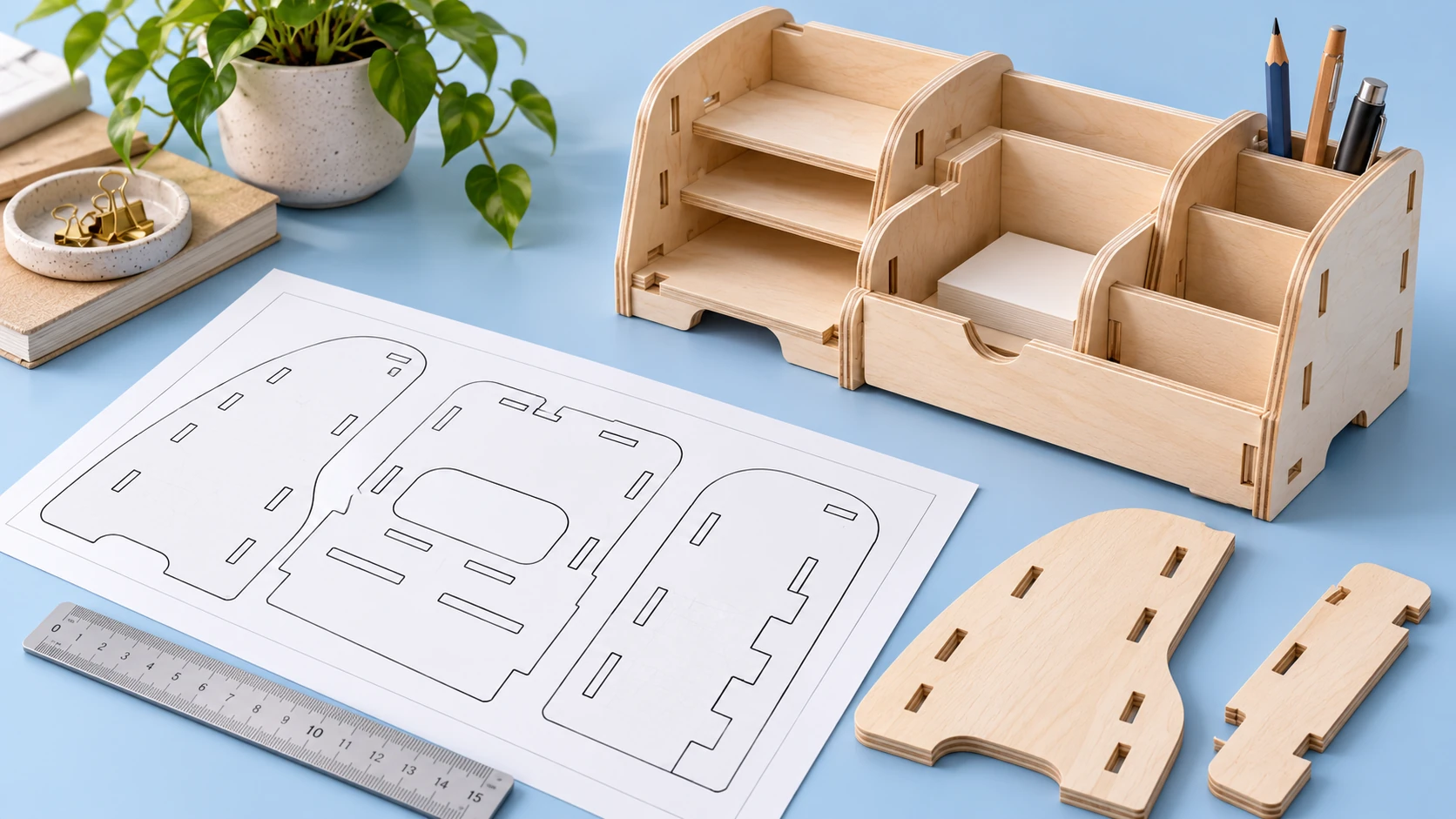
Woodworking patterns compared with template pieces

Pattern and Template Review

Use a scanned pattern or template as a CAD reference. Compare a known length and check curves before sharing the file for further design work. Examine repeated or mirrored features as well as the outer boundary; a small discrepancy may matter when pieces need to fit together. Document any manual adjustments so that the next person can distinguish the converted reference from a checked and revised design. Keep the original image accessible for that review.

JPG to DXF FAQs

Find out what to upload and what to check after conversion.

Turn Your JPG Drawing into a DXF

Upload a clear scan, choose your conversion options, and preview the result before downloading it for your next CAD step.